Robotics for Beginners · Chapter 1
· 15 min read
Learning to control a robot arm in simulation
I have been wanting to create a robotics course that my friends can follow without owning a robot arm. Robotics for Beginners starts with an arm in simulation and works toward experiments in robot learning.
We will use MuJoCo to simulate how a robot moves under forces and contact. The simulator needs a description of the robot’s parts, joints, and actuators. These are specified in a robot model. We will start with the SO101 arm from MuJoCo Menagerie.
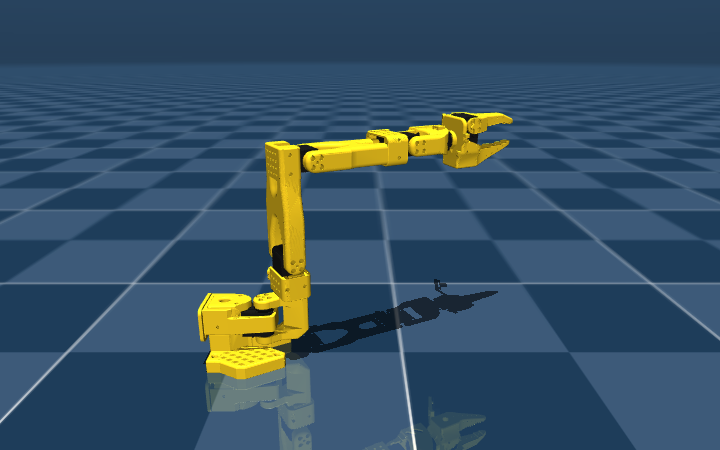
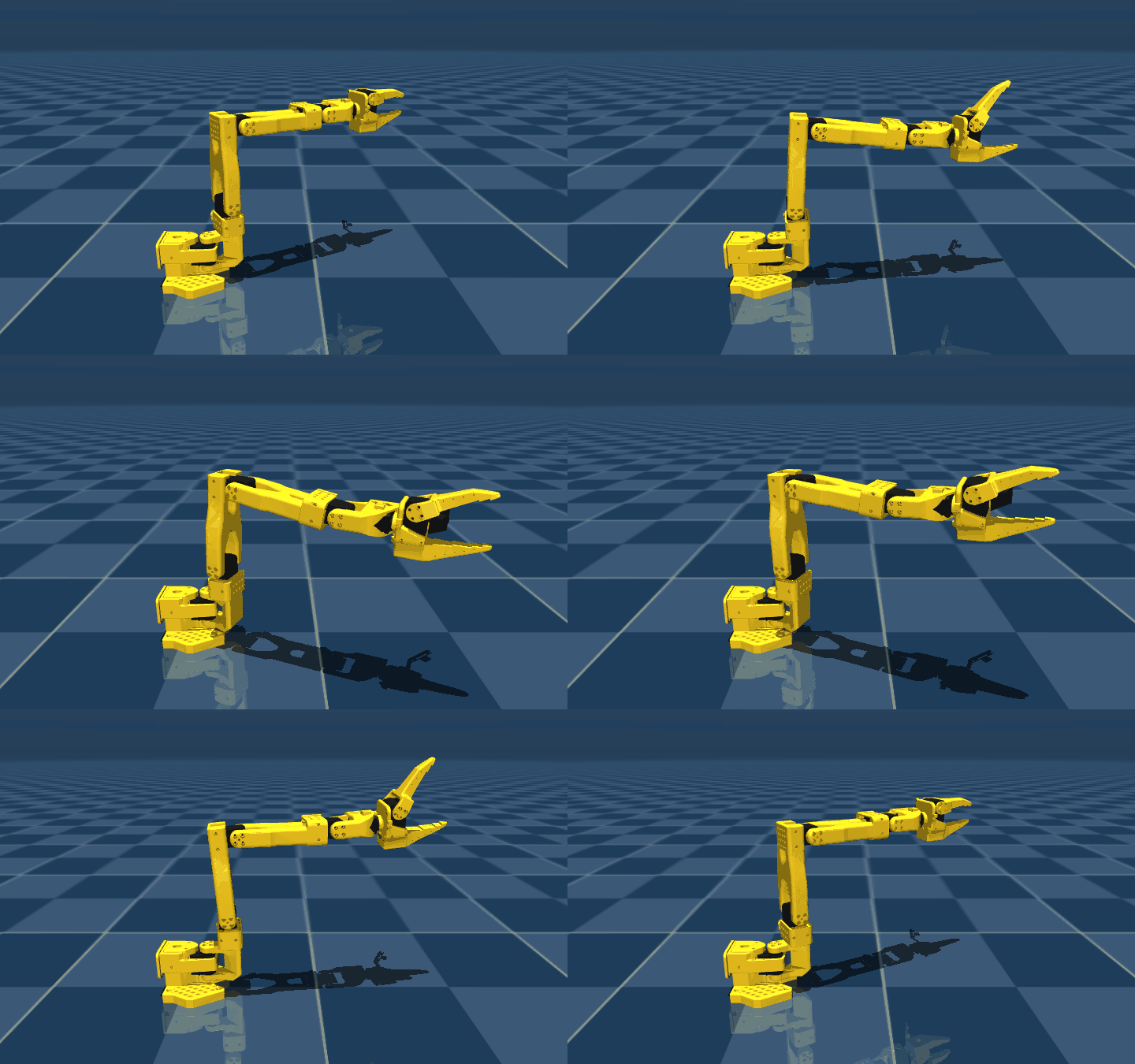
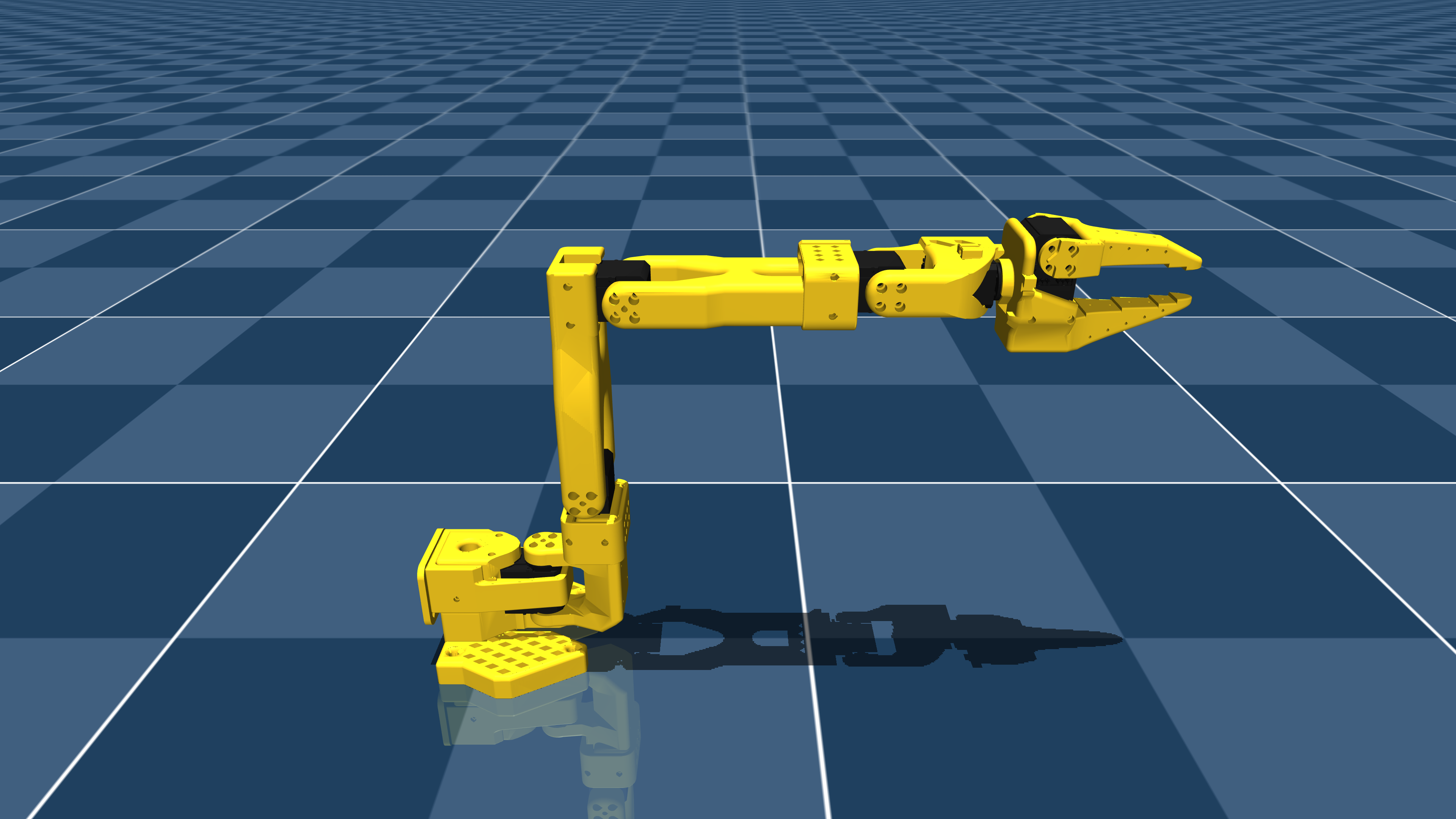
The question for this chapter is whether changing a joint’s target angle moves the joint before the simulation advances.
Start here
A command records what we ask the arm to do. The joint angle and velocity describe what it is doing. A physics step updates that state.
MuJoCo keeps control inputs separate from the state used to compute motion. Its simulation procedure uses the control input when advancing the state. This distinction is the basis of the exercise below. MuJoCo simulation documentation.
What to learn first
We will focus on the concepts needed to explain an arm’s movement. By the end of the chapter you should be able to identify its joints, explain how a shoulder movement carries the gripper, and distinguish a requested angle from the arm’s response.
The exercise is to hold a position target and record how the joint responds.
Parts of the arm
A link is a rigid part of the arm. A joint permits movement between links. A hinge joint allows rotation about an axis. The SO101 model uses hinge joints for its shoulder, elbow, wrist, and gripper jaw. The diagram follows the joints in the model definition.
An actuator produces force or torque. Torque is the turning effect of a force about an axis. In this arm the actuators drive joint rotation. The end effector is the tool at the end of the arm that interacts with an object. Here it is a gripper. These distinctions appear in MuJoCo’s actuation model and the Modern Robotics description of robot links and joints.
Select a joint to locate it in the diagram.
The links and joints form a kinematic chain, a connected sequence from the base to the gripper. Each link’s placement is defined relative to the link before it. Moving the shoulder carries the elbow, wrist, and gripper. Opening the jaw changes the gripper opening while the shoulder can stay in place. MuJoCo represents these dependencies through a hierarchy of bodies.
Joint angles and gripper pose
A coordinate frame has an origin and axes used to describe position and orientation. The world frame is fixed to the scene. A frame attached to the upper arm moves with that arm. The same point can have different coordinates depending on which frame describes it. Modern Robotics introduces these conventions in its treatment of rigid-body motion.
In the diagram below the shoulder angle is measured from the world’s horizontal axis. The elbow angle is measured from the extension of the upper link. Keep the elbow angle fixed and change the shoulder angle. The elbow keeps its bend while the gripper moves through the world frame.
Start with the shoulder. Use the arrow keys when a slider has keyboard focus.
- Gripper mount (x, y)
- (1.27, 1.07)
- Gripper direction
- 15°
Position describes where the tool is. Orientation describes which way it points. Pose includes both. For example, a gripper above a package can point toward the package or away from it without changing its position. The frame representation records this difference. Position and orientation in Modern Robotics.
Forward kinematics computes the tool’s pose from the joint configuration, meaning the set of joint positions. Inverse kinematics asks which joint configurations can reach a requested pose. Depending on the arm and the request there may be several solutions or none. These problems are introduced in the textbook’s sections on forward kinematics and inverse kinematics.
For now, use the diagram to follow the chain. The pose changes because each joint changes the placement of the links after it.
Commands and motion
The SO101 model uses position servos. A position servo produces force or torque in response to a requested position and the joint state. A controller chooses the commands sent to the actuators. For this arm the request is a joint angle. A request for an angle of zero remains a position command. It does not disable the actuator. MuJoCo position servos.
We need to keep track of the following quantities.
| Quantity | Meaning |
|---|---|
| Target angle | The joint angle requested by the controller |
| Joint angle | The joint’s current rotation relative to its reference configuration |
| Angular velocity | The rate of change of that angle |
| Simulation time | The elapsed time represented by the physics steps |
MuJoCo calculates acceleration from the forces acting on the arm and restrictions such as joint limits. It updates velocity and position as simulation time advances. This is the dynamics calculation, which describes how forces produce motion. MuJoCo integration procedure.
Set a target while the simulation is paused. The request changes while the joint state stays where it was. When physics steps resume the simulator can compute the response to that request. This follows from the separation between controls and state in MuJoCo’s simulation procedure.
- Request
- Turn below the starting direction
- Joint
- At its starting angle
- Physics
- Paused
Changing the request leaves the joint state unchanged until physics advances.
The distinction matters when using the viewer. Editing the joint angle sets the state. Editing the target changes what the actuator is asked to do. MuJoCo exposes state and control as separate quantities.
Hold a target and record the response
The exercise uses the shoulder pan joint, which turns the arm around its base. Set its target within the model’s permitted control range. Keep that target fixed while the simulation advances. The model defines control ranges for its position actuators.
Record the target angle, joint angle, angular velocity, and simulation time throughout the movement. Use radians for angles and radians per second for angular velocity. MuJoCo uses radians in its compiled models.
Plot the target and joint angle together against simulation time. Use another plot for angular velocity. The angle plot should show where the joint goes relative to the request. The velocity plot should show when it moves and when its direction changes.
How to read the response
Position error is the target angle minus the joint angle. Its magnitude measures how far the joint is from the request. A smaller magnitude means a closer match. This is the error definition used in Modern Robotics to describe a controller’s response. For a target held fixed, angular velocity near zero indicates little movement.
These quantities answer different questions. Consider a joint passing through its target. Its position error reaches zero even if it is still moving. Now consider a joint held against an obstacle away from the target. Its velocity can be zero while position error remains. The angle and velocity must be read together.
In the plots, overshoot means passing beyond the target. Oscillation means moving back and forth around it. These are features of the error response. For this exercise we will call the response settled when position error and velocity remain within chosen bounds. State those bounds and the observation period when reporting a settling result.
If the elbow angle stays fixed while the shoulder moves, does the tool stay in place?
The shoulder carries the links after it. The elbow keeps its bend relative to the upper arm while the tool moves in the world frame.
Other robots to explore
 Arm
The Robot Studio SO101
Arm
The Robot Studio SO101
 Arm
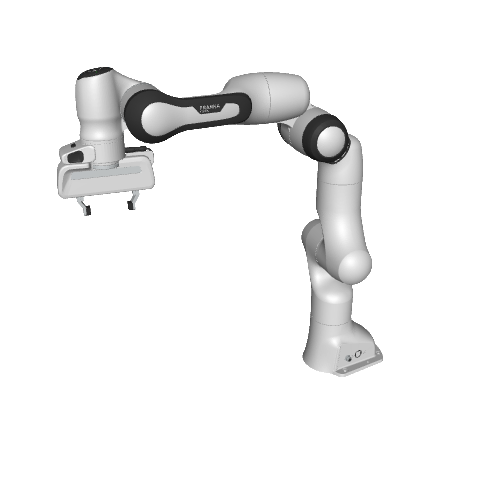
Franka Emika Panda
Arm
Franka Emika Panda
 Arm
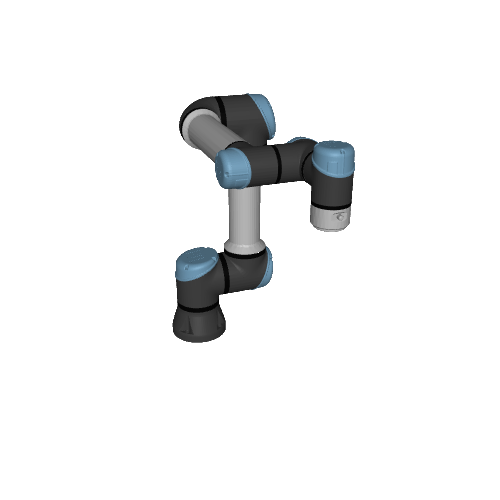
Universal Robots UR5e
Arm
Universal Robots UR5e
 End effector
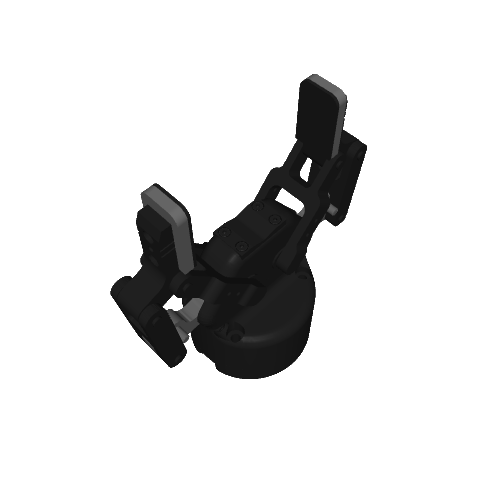
Robotiq 2F-85
End effector
Robotiq 2F-85
 End effector
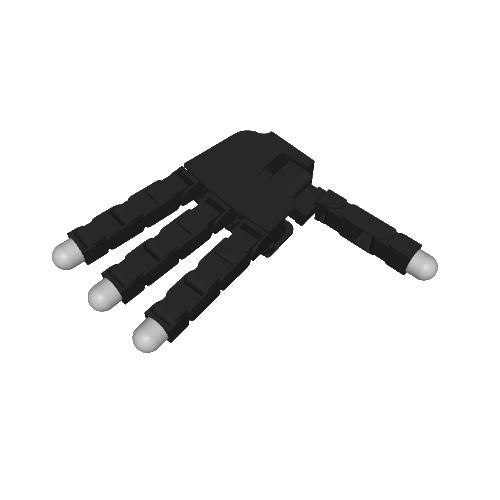
Allegro Hand V3
End effector
Allegro Hand V3
 Humanoid
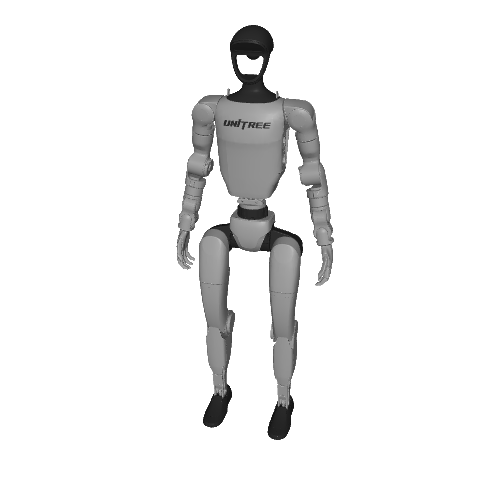
Unitree G1
Humanoid
Unitree G1
Explore more arms and end effectors
 Arm
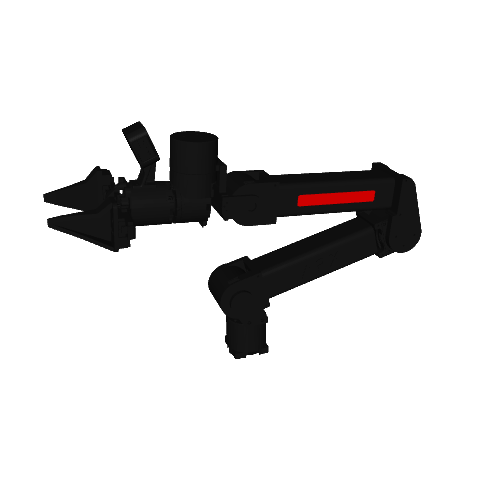
ARX L5
Arm
ARX L5
 Arm
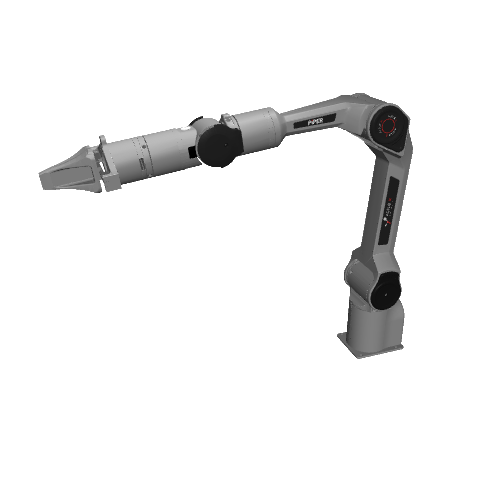
AgileX PiPER
Arm
AgileX PiPER
 Arm
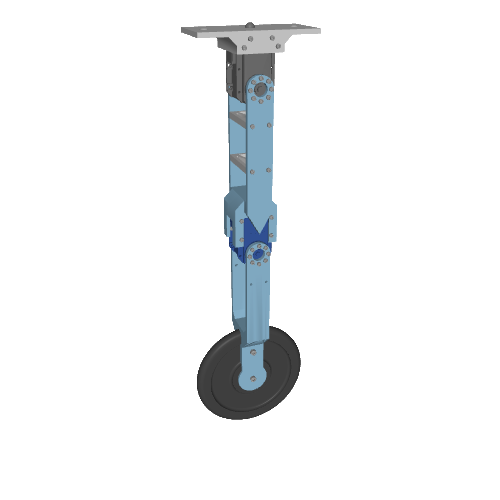
Dynamixel 2R
Arm
Dynamixel 2R
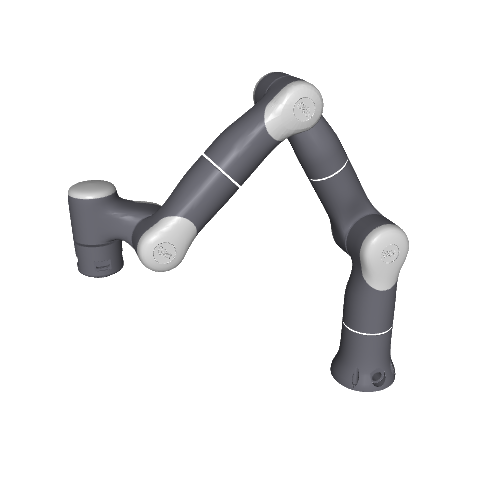 Arm
Flexiv Robotics Rizon4
Arm
Flexiv Robotics Rizon4
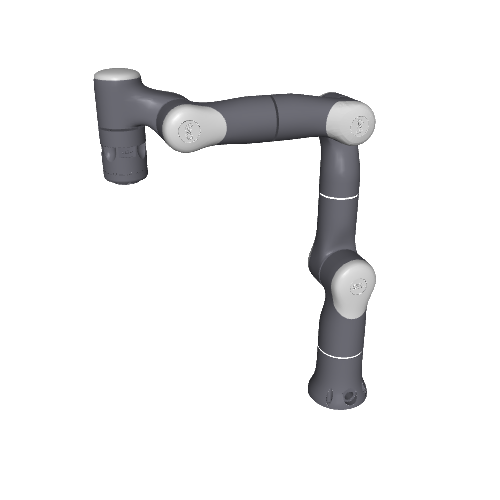 Arm
Flexiv Robotics Rizon4S
Arm
Flexiv Robotics Rizon4S
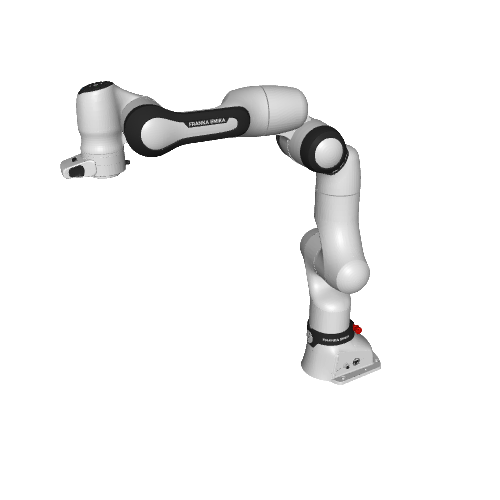 Arm
Franka Robotics FR3
Arm
Franka Robotics FR3
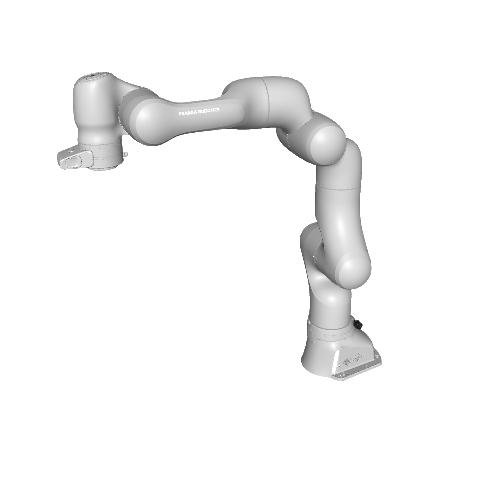 Arm
Franka Robotics FR3 v2
Arm
Franka Robotics FR3 v2
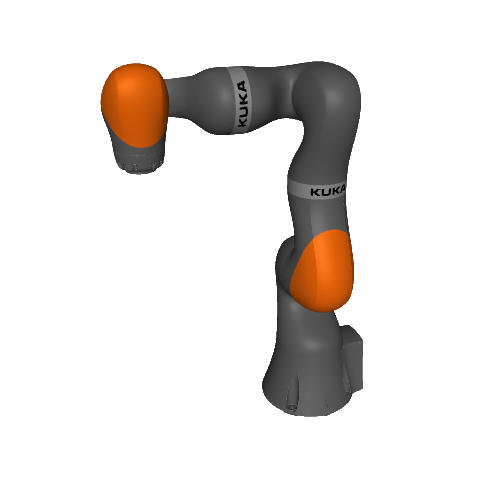 Arm
KUKA LBR iiwa 14
Arm
KUKA LBR iiwa 14
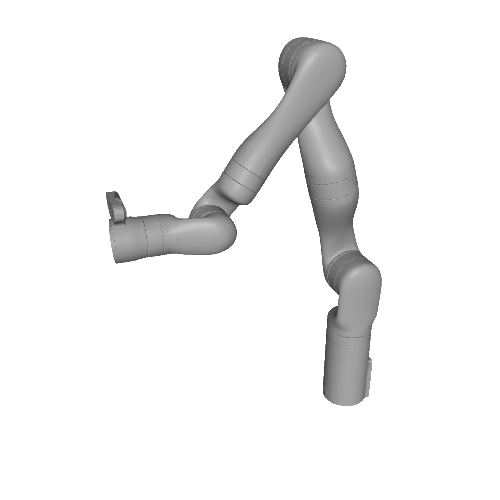 Arm
Kinova Gen3
Arm
Kinova Gen3
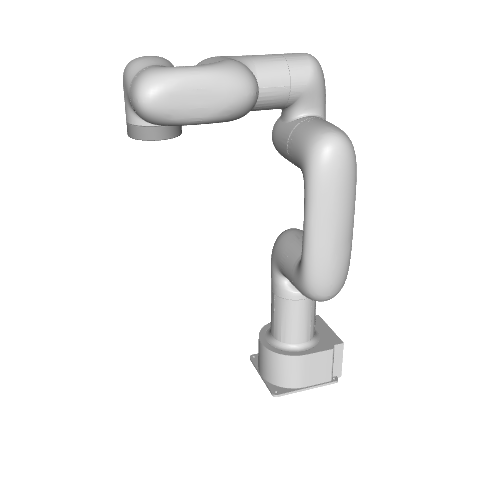 Arm
Lite 6
Arm
Lite 6
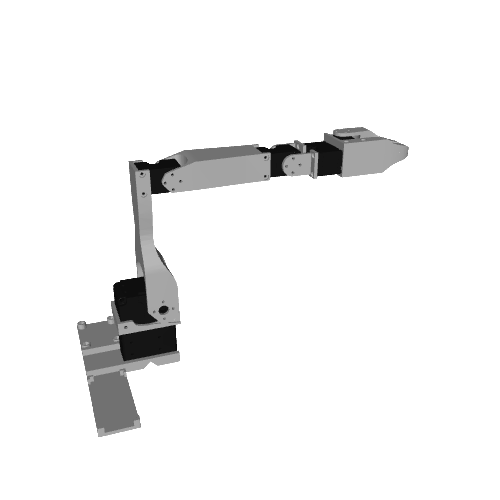 Arm
Low-Cost Robot Arm
Arm
Low-Cost Robot Arm
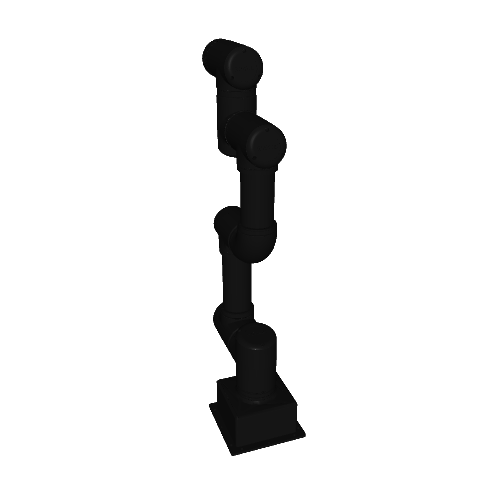 Arm
ROBOTIS OMY-3M
Arm
ROBOTIS OMY-3M
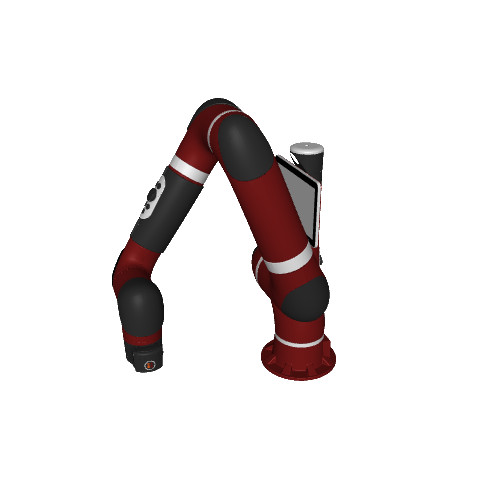 Arm
Rethink Robotics Sawyer
Arm
Rethink Robotics Sawyer
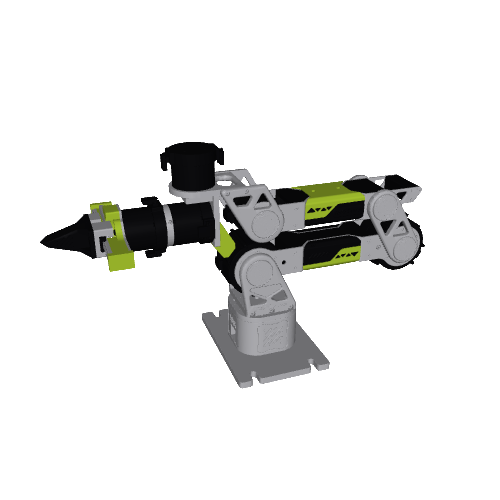 Arm
Seeed Studio reBot DevArm
Arm
Seeed Studio reBot DevArm
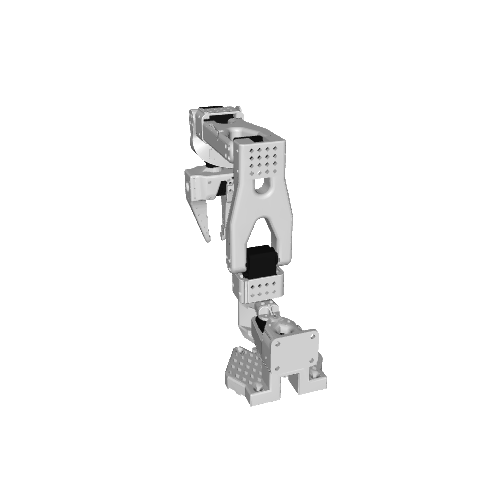 Arm
Standard Open Arm-100 5DOF - Version 1.3
Arm
Standard Open Arm-100 5DOF - Version 1.3
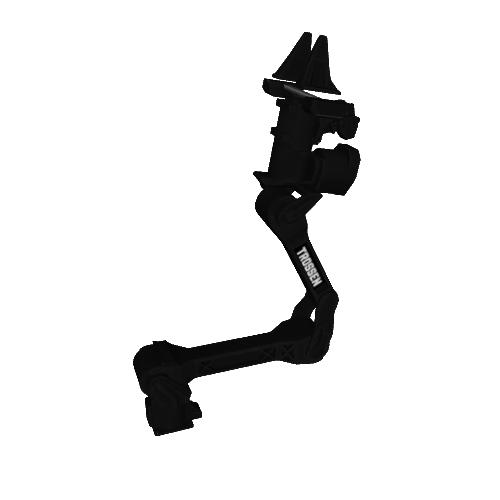 Arm
Trossen WXAI
Arm
Trossen WXAI
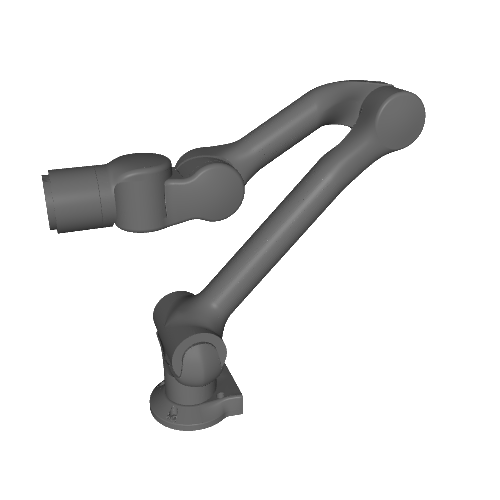 Arm
Unitree Z1
Arm
Unitree Z1
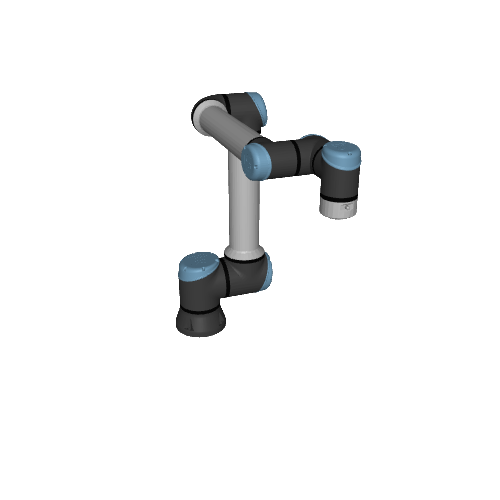 Arm
Universal Robots UR10e
Arm
Universal Robots UR10e
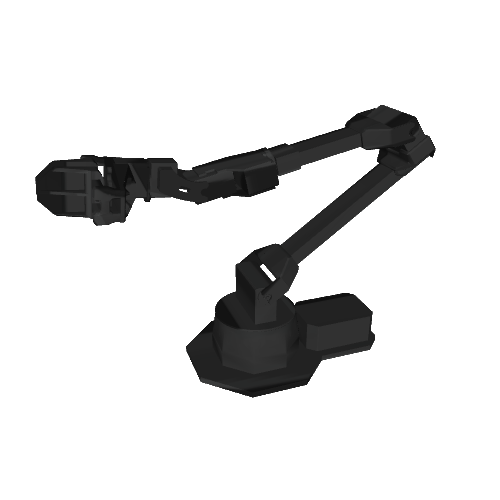 Arm
ViperX 300 6DOF
Arm
ViperX 300 6DOF
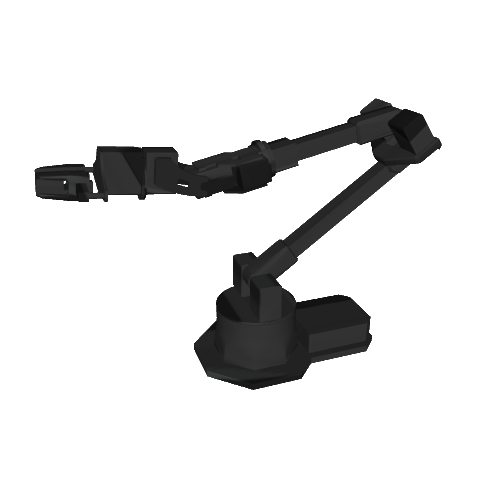 Arm
WidowX 250 6DOF
Arm
WidowX 250 6DOF
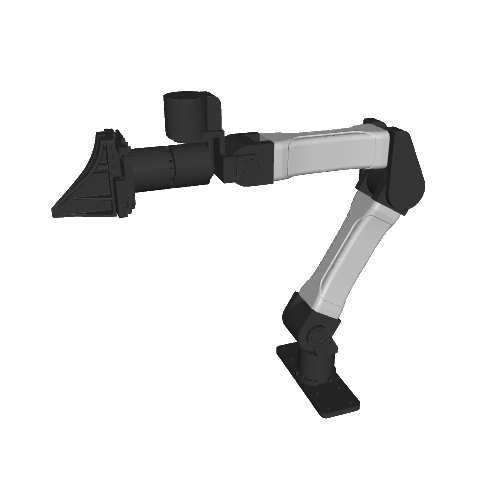 Arm
Yet Another Manipulator (YAM)
Arm
Yet Another Manipulator (YAM)
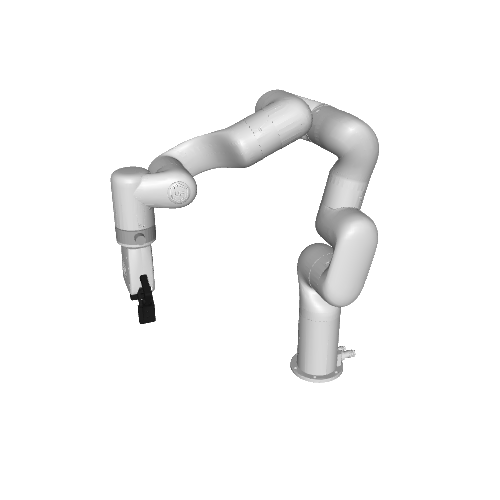 Arm
xArm7
Arm
xArm7
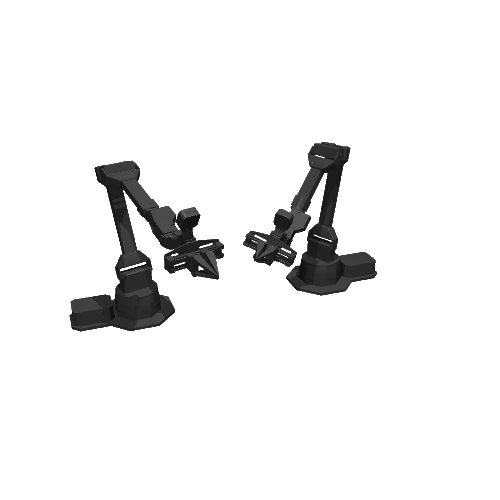 Dual arm
ALOHA
Dual arm
ALOHA
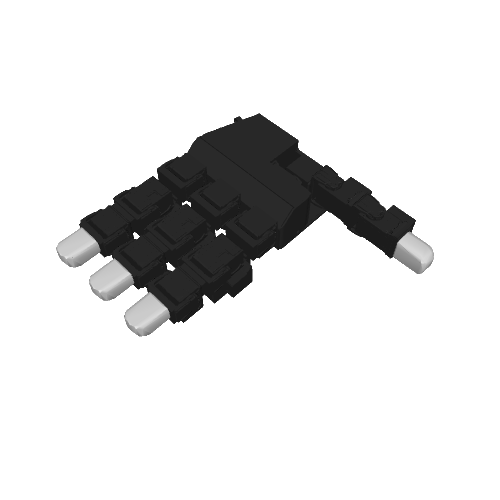 End effector
Leap Hand
End effector
Leap Hand
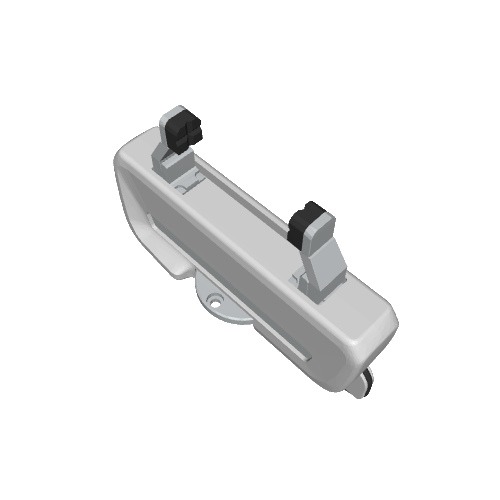 End effector
Panda Gripper
End effector
Panda Gripper
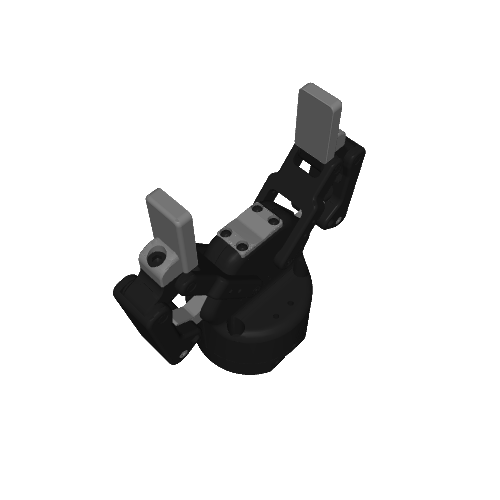 End effector
Robotiq 2F-85 v4
End effector
Robotiq 2F-85 v4
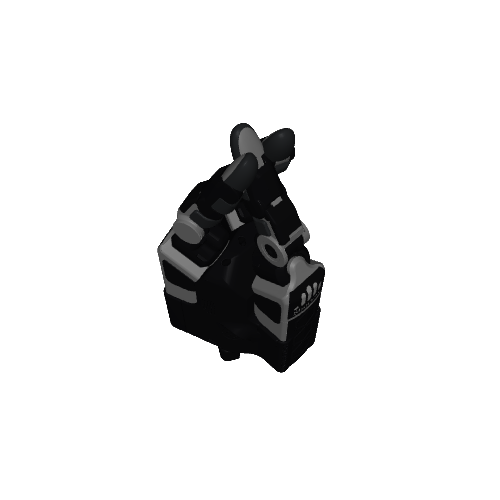 End effector
Shadow DEX-EE Hand
End effector
Shadow DEX-EE Hand
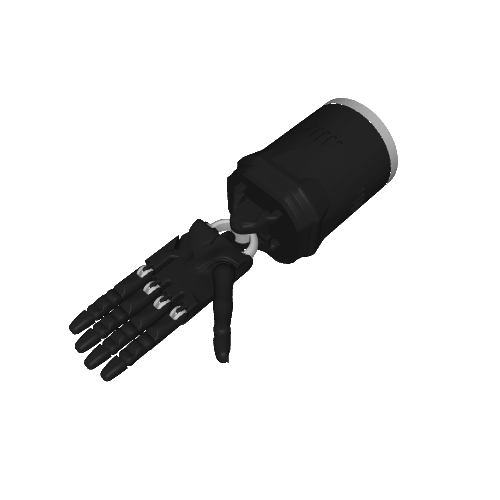 End effector
Shadow Hand E3M5
End effector
Shadow Hand E3M5
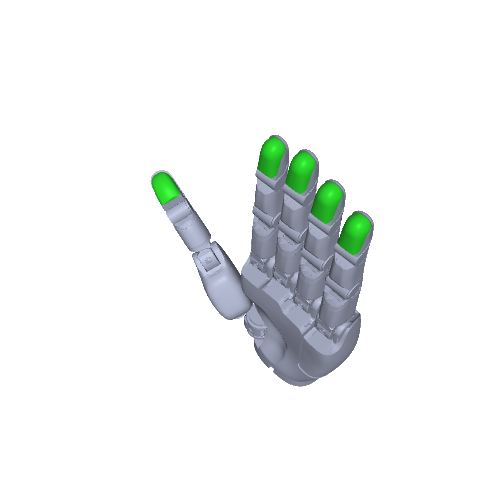 End effector
Sharpa Wave
End effector
Sharpa Wave
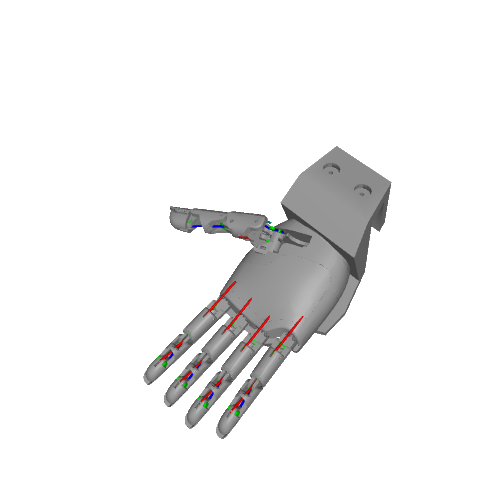 End effector
Tetheria Aero Hand Open
End effector
Tetheria Aero Hand Open
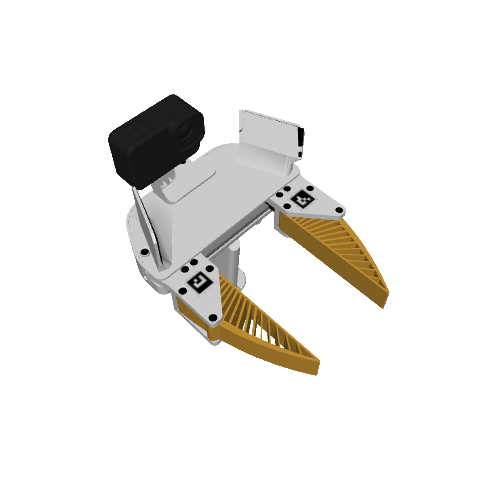 End effector
UMI-Gripper
End effector
UMI-Gripper
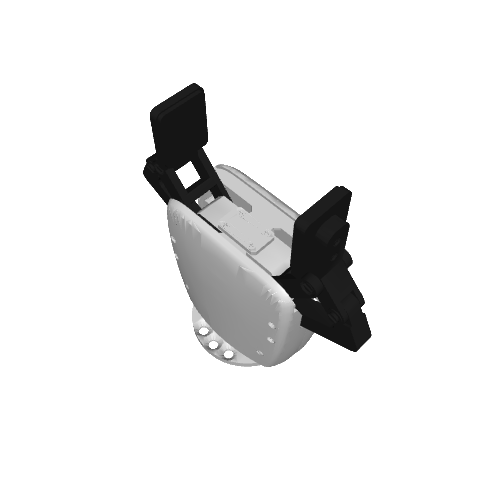 End effector
xarm7 Gripper
End effector
xarm7 Gripper
Conclusion
Following the chain from the shoulder to the gripper explains why a fixed elbow angle does not keep the gripper in place. Joint angles determine the arm’s pose. A target angle gives the actuator a request and the joint responds as the simulation advances.
Reaching the target is only part of the task. The joint must also stop moving near it. Read position error and angular velocity together to judge that response. Before moving on to robot learning, hold a joint target fixed and plot the joint angle and velocity over time.